
Overview
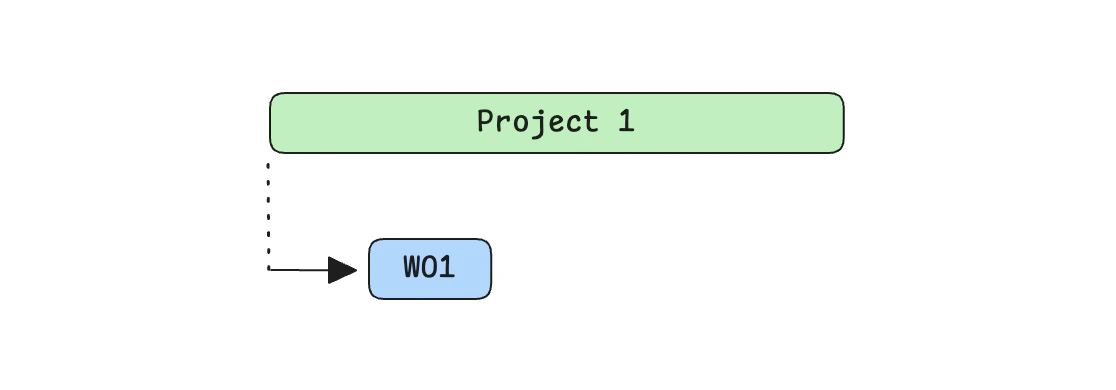
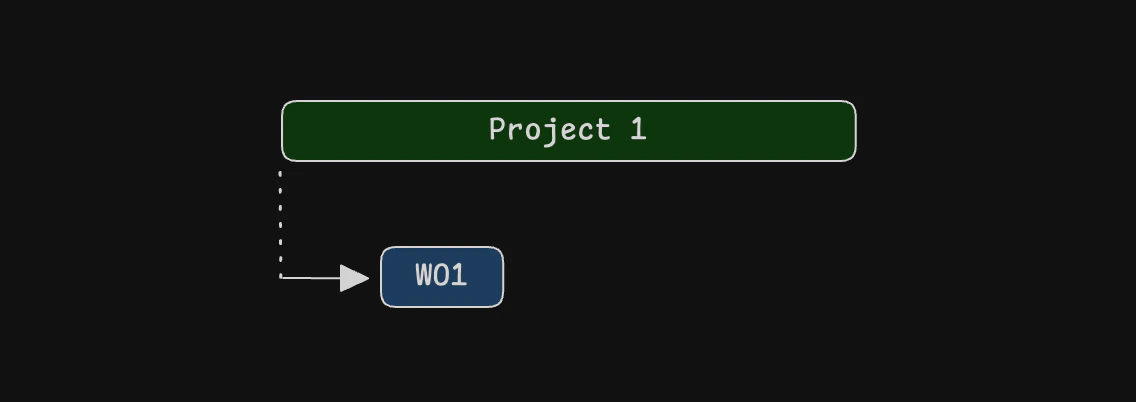
In addition to setting standard start and end dates, Idalia allows you to derive an activity’s dates from another activity. For example, you can configure a work order to start when the project it’s associated with starts. Whenever the start date of the project is changed, the work order’s start date will be updated automatically.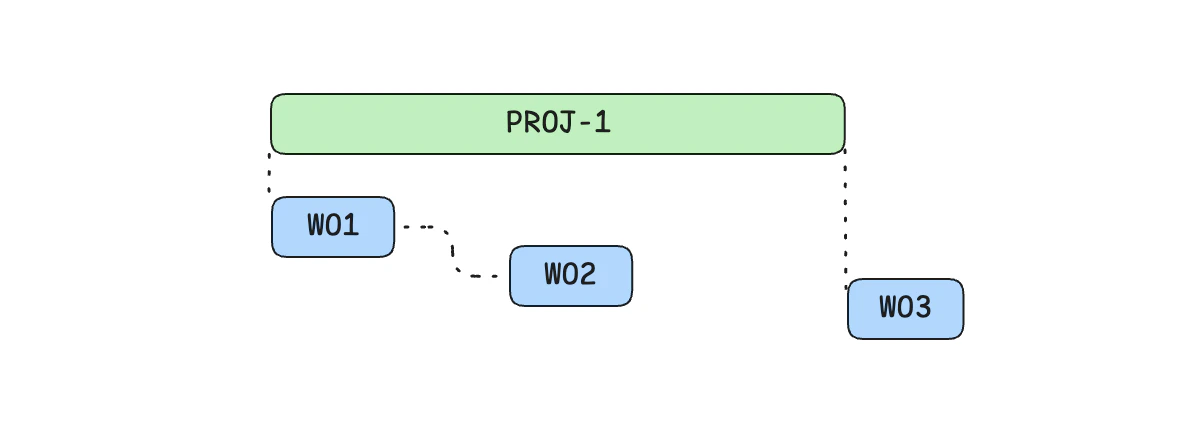
Why use dependent dates?
At scale, establishing relationships between activities and their dates makes it easy to keep complex project timelines in sync. If one activity changes, all dependent activities update instantly, reducing manual work and helping to avoid scheduling errors. A properly-configured project can trigger a cascade of updates from a single change to a key date. This means project managers can handle high-level timelines, and detailed delivery teams benefit from live, automatic updates to their schedules. See the example workflow below for an example of how powerful this can be.How to create a dependent date
To set up a dependent date, you need to:- Go to the activity and go to the Date tab
- Choose Depends on from the menu
- Select the type of activity you want to depend on: project, work orders, etc.
- Select the specific activity you want to depend on
- Choose the date field you want to depend on: start or end
Offset dependencies
You can also ‘offset’ a dependency by a certain number of days, weeks, months, or years in either direction. This allows you to set up more complex dependencies, such as:- B starts 1 day after A starts
- C starts 1 week after B ends
- D ends 3 months before B starts
How to add an offset
To add an offset, follow the steps to create a dependent date up until Step 5. Then:- Press shift + enter
- This opens the offset configuration menu
- Use the arrow keys to set the offset amount and unit
- Press Enter to confirm
How to remove a dependent date
Dependencies are automatically removed when you manually set the date or when you press Remove linked date in the activitity’s date menu.Example workflow
Let’s say we have a project starting 1st January which is expected to run for 3 months. A tower crane is being installed on site for the duration of the project, climbing up a few levels after a month on site. We break down the project into 3 work orders: install, climb, and dismantle. Here’s how we set this up in Idalia:- Create the project and set its start and end dates.
- Create Work Order 1 - Install. Set its start date as ‘depends on’ the project’s start date.
- Do the same for Work Order 2 - Climb, but add an offset of 1 month.
- Create Work Order 3 - Dismantle. Set its start date as ‘depends on’ the project’s end date.
- Create the allocation order and attach it to the project. Set its start date to depend on the project’s start date. Set its end date to depend on the project’s end date.
- Add the 54 tower crane components to the allocation order. By default, they will inherit the allocation order’s start and end dates. This is fine for 50 out of the 54 components. but we need to edit the 4 tower sections going in for the climb.
- For the 4 components being installed by Work Order 2 - Climb, change their start dates to ‘depends on’ the work order’s start date.
- If the project start is pushed back by a week, the allocation order and work orders depending on the start date are pushed back also: Work Order 1 - Install and Work Order 2 - Climb.
- The allocation order being pushed back causes the 50 components we left with default dates to be pushed back also: they get their dates directly from the allocation order.
- Work Order 2 - Climb being pushed back causes the 4 tower sections going in for the climb to be pushed back also.
Avoiding Cycles
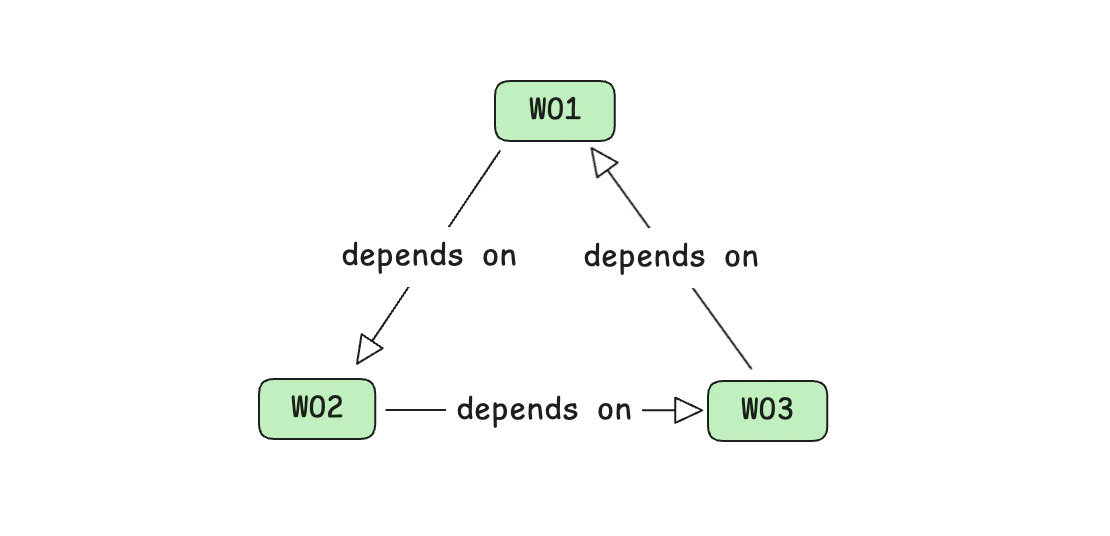
Idalia prevents “cycles” in dependent dates. A cycle happens when dates depend on each other in a loop. For example:- A starts when B starts
- B starts when C starts
- C starts when A starts